
Use n8n tools with Hermes
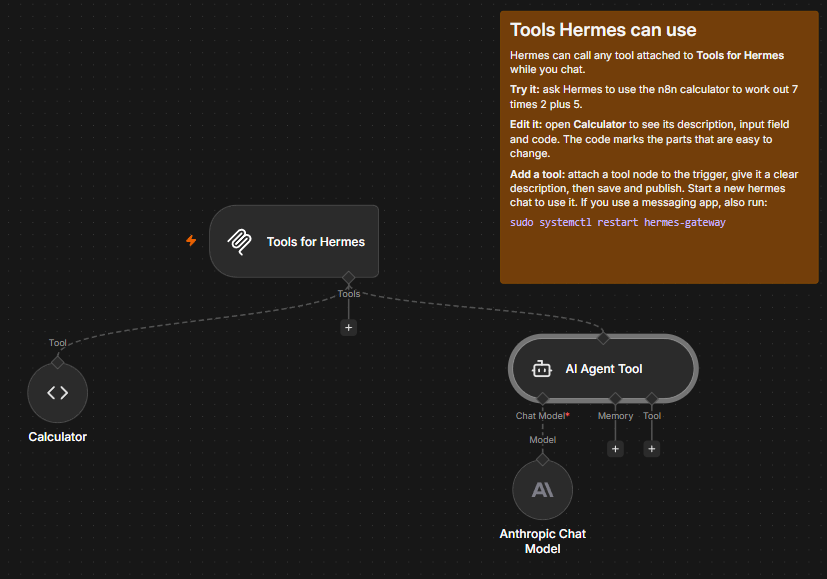
The n8n tools workflow is the list of tools Hermes can call while you chat. Attach a Google Sheets tool, for example, and Hermes can look up rows when you ask. Hermes can use what you attach, but cannot change it.
n8n tools work from the first boot, with no setup, and do not need the workflow builder.
What's there at the start
One example tool, a Calculator, and a note on the canvas that explains the workflow. Ask Hermes to work something out with the n8n calculator to see it in use:
The Calculator reads sums in symbols or words, such as 8 * 2 + 6, 8 x 3,
7 times 2 plus 5, or the square root of 16.
| You can use | For example |
|---|---|
| Add, subtract, multiply, divide | 2 + 3 * 4, 12 ÷ 4, 10 minus 3 |
| Brackets and powers | (2 + 3) * 4 ^ 2, 4 squared |
| Percentages and remainders | 20% of 50, 200 + 10%, 10 mod 3 |
| Functions | sqrt, cbrt, abs, round, floor, ceil, log, ln, sin, cos, tan (angles in degrees) |
| Number words and phrases | seven times two, two hundred fifty, add 5 and 3, half of 10 |
Multiplying and dividing come before adding and subtracting. If the Calculator can't read a sum, it says so rather than guessing.
Answers show up to 12 significant digits, as on a calculator, so 1 / 3 is
0.333333333333. Very large answers use scientific notation, such as
1.15292150461e+18.
Change the Calculator
The Calculator is an ordinary n8n Code Tool, so you can read and change it. Open it to see its description, its input field and its code.
To try a small change, teach it a new word:
- Open Calculator. Near the top of the code, find
OPERATOR_WORDS. - Add
['lots of', '*'],as a new line in the list. - Save the workflow, and click the publish button.
-
Start a new
hermes chat. If you use a messaging app, restart the gateway: -
Ask Hermes to use the n8n calculator to work out
3 lots of 4.
See what Hermes sent
Each time Hermes uses a tool, n8n records the run. Open the n8n tools workflow and click the Executions tab to see what Hermes sent and what the tool returned.
Add a tool
- Open the n8n tools workflow in the n8n editor.
- Attach a tool to the Tools for Hermes trigger. Any n8n tool node works, such as a Google Sheets or HTTP Request tool, or Call n8n Workflow Tool to hand Hermes one of your own workflows.
- Give the tool a clear name and description. Hermes reads them to decide
when to use it. If the tool has no required fields, say in the description
which field Hermes should use, for example
Put the text in a field called input. - Save the workflow. Click the publish button in the top right of the page.
Hermes picks up the new tool the next time it connects. A chat that is already
open won't see it, so start a new hermes chat. If you use a messaging app,
restart the gateway:
If a tool gets the wrong input
In a new chat, Hermes can call a tool before it has read the tool's fields. When a required field is missing, Hermes reads the fields and tries again. When no field is required, the tool can run with no input and return an error or an empty result. Mark the fields as required in the tool's input schema if it has one, or name the field in its description.
Use without editing
Handing Hermes one of your workflows through Call n8n Workflow Tool lets it run that workflow without being able to change it, even if mcp access for that tool is not enabled.
Keep it published
Hermes can reach the tools only while n8n tools is published. If it is
unpublished, sudo hermes-n8n doctor offers to publish it again.
The Enable MCP access switch in n8n's Settings, Instance-level MCP does not affect n8n tools. It controls the workflow builder only.
Last updated November 10, 2026 · Suggest an improvement