Quick start
From subscribing to your first conversation with Hermes inside n8n. It takes about twenty minutes to get it up and running.
You need:
- An AWS account, with permission to subscribe to AWS Marketplace products and to launch EC2 instances.
- An API key from a model provider, such as Anthropic or OpenAI. Hermes uses it for every reply, and the provider bills you for that use directly.
Optional
- A terminal on your computer with
ssh. macOS, Linux and Windows 10 or later all include one. You can either use this method, or the EC2 instance dashboard Connect option to setup Hermes.
Already comfortable with AWS?
This page uses the recommended settings throughout. The Working on the instance pages cover other ways to connect, and how to keep n8n off the internet entirely.
1. Open the listing and subscribe
On the Hermes AI Agent + n8n page in AWS Marketplace, choose View purchase options, review the terms, and choose Subscribe.
2. Launch your software
When the purchase is confirmed, choose Launch your software. AWS opens its Launch an instance page with the Hermes AI Agent + n8n image already chosen.
Check two things on that page:
- Instance type:
t3.largeor larger. Hermes and n8n run side by side, and smaller types run short of memory. - Name and tags: optional, but a name helps you find the instance later.
3. Create a key pair
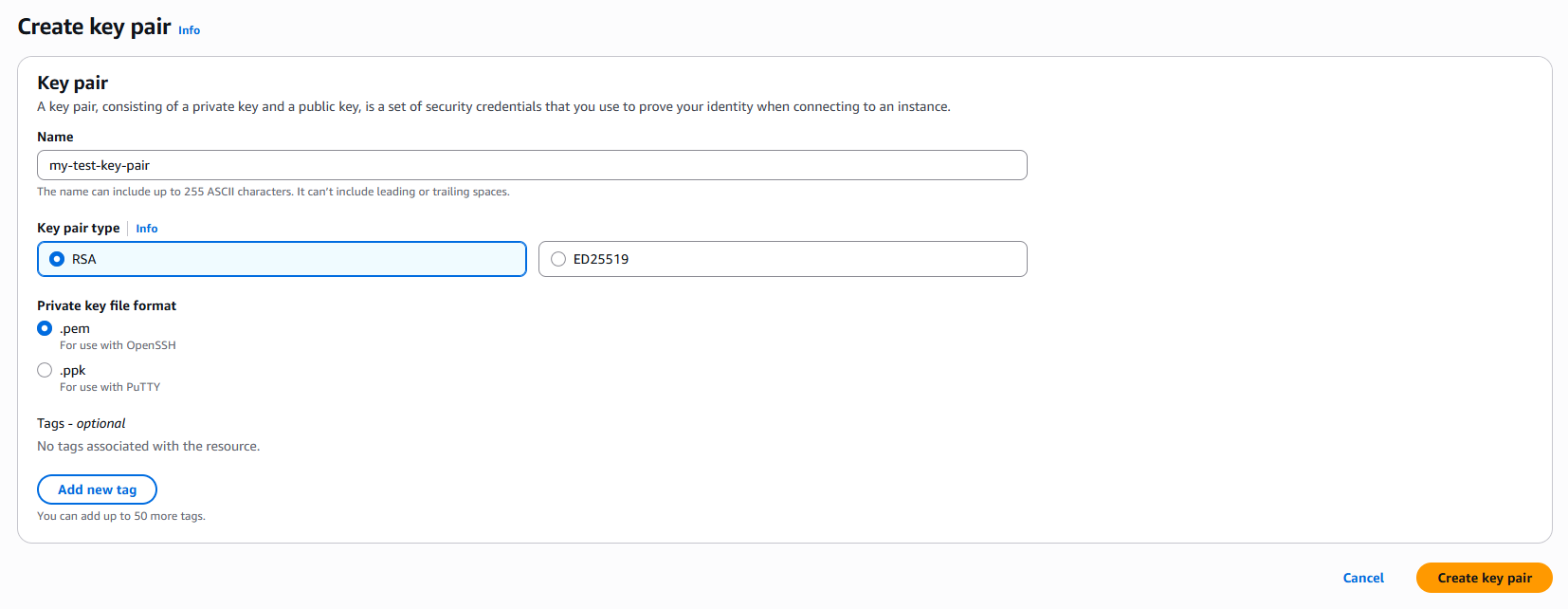
Under Key pair (login), choose Create new key pair, give it a name, and
keep the .pem file that is automatically downloaded somewhere safe, where you
will remember it.
Don't lose your key pair!
After creation, it is only available to be downloaded once, so make sure you have placed it somewhere safe before continuing.
4. Create the security group
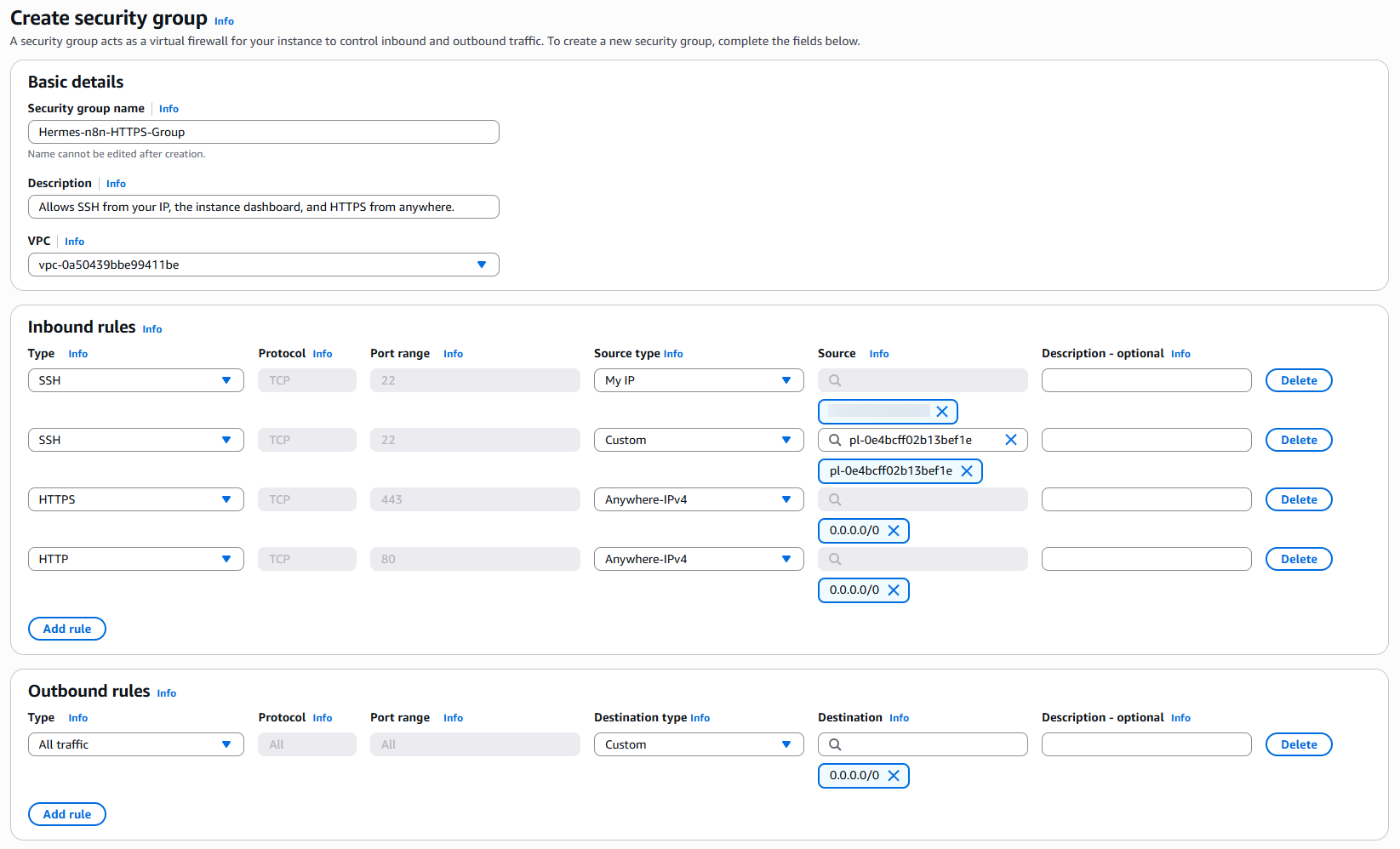
The security group decides who can reach the instance. It needs four rules: two for a terminal, and two for the n8n dashboard in your browser.
- In a new browser tab, open the EC2 dashboard, then the sidebar.
- Choose Security Groups under Network & Security, then Create security group.
- Give it a name and a description, and leave VPC as it is.
-
Under Inbound rules, add these four rules with Add rule:
Type Source type Source Lets in SSH My IP Fills in your address A terminal on your computer SSH Custom Search for com.amazonaws.<region>.ec2-instance-connectThe Connect button in the EC2 console HTTPS Anywhere-IPv4 0.0.0.0/0The n8n dashboard in your browser HTTP Anywhere-IPv4 0.0.0.0/0The dashboard's certificate checks, and http://visits sent on tohttps://
The SSH rule for the EC2 instance dashboard
When searching for the com.amazonaws... rule for your security group, you will see a single
prefix list suggestion appear containing 'com.amazonaws.<region>.ec2-instance-connect | pl-....
Select this suggestion to allow the EC2 Dashboard SSH access to your instance.
- Leave Outbound rules as they are, and choose Create security group.
- Back on the launch page, under Network settings, choose Edit, then Select existing security group, and choose the group you created.
Why HTTPS and HTTP are open to everyone
The dashboard's certificate comes from Let's Encrypt, which checks your instance from the internet when it issues the certificate and every few days after, when it renews it. Limiting these two rules to your own address stops the certificate. Anyone can reach the dashboard's sign-in page, but nobody gets further without your instance's ID at first, and your n8n account after that.
If your address changes
The My IP rule allows only the address you had when you created it. If
ssh stops connecting from your computer, edit that rule and choose
My IP again. The Connect button and the dashboard keep working in
the meantime. See Connect to your instance.
5. Launch and wait for the first boot
Choose Launch instance. When Instance state says Running, open the instance's details and note two things:
- Instance ID, which starts with
i-. You enter it the first time you open n8n. - Public IPv4 address. The dashboard's address.

The first boot then prepares n8n, connects it to Hermes, and gets the dashboard's certificate. Give it about three minutes before the next step.
6. Connect and check
In the EC2 instance dashboard, click the Connect button at the top right of the instance summary / dashboard to open a terminal in your browser.
Connecting via a local terminal
If instead of the instance dashboard you choose to use a local terminal, connect using this command, substituting your own key name and instance public IP. Make sure you either run a terminal from the location of your downloaded key-pair, or you point to its path in the command.
Then, to make sure everything is ready to go, run in your terminal the following command.
Under What works, Ask Hermes and Hermes tools should say working, and
Web dashboard shows your address, https://<public-ip>/. The workflow
builder shows as not connected yet, so the last line lists it as off: you
connect it after setup.
7. Set up Hermes
Run Hermes's own setup and follow its questions:
Select Full Setup, choose your model provider and paste your API key. You can also connect Telegram, Discord or Slack here, or skip messaging entirely. See Messaging channels.
Keep the system service
Hermes setup may suggest a per-user gateway service. Our recommendation is to keep the system service, as that is what this product has been built and tested on. Per-user gateway service should be compatible, but has not been tested, so it could result in unexpected behavior.
8. Restart the gateway
Hermes's gateway runs in the background and only reads your new settings when it starts:
Not sudo hermes gateway restart
Use systemctl as shown. Running Hermes's own restart command with sudo
rewrites the service while reading root's settings instead of yours.
9. Open n8n
In your browser, go to your instance's address:
Use your own IP. The first time, a page asks for your instance ID: paste
the i- ID from step 5 and choose Continue.
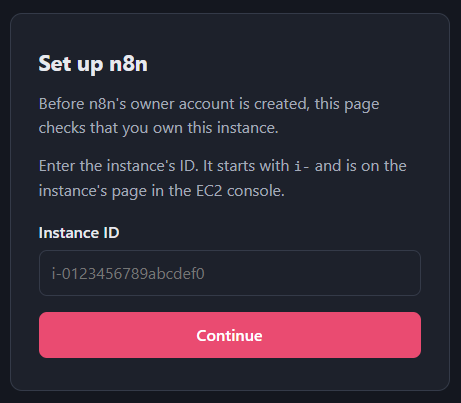
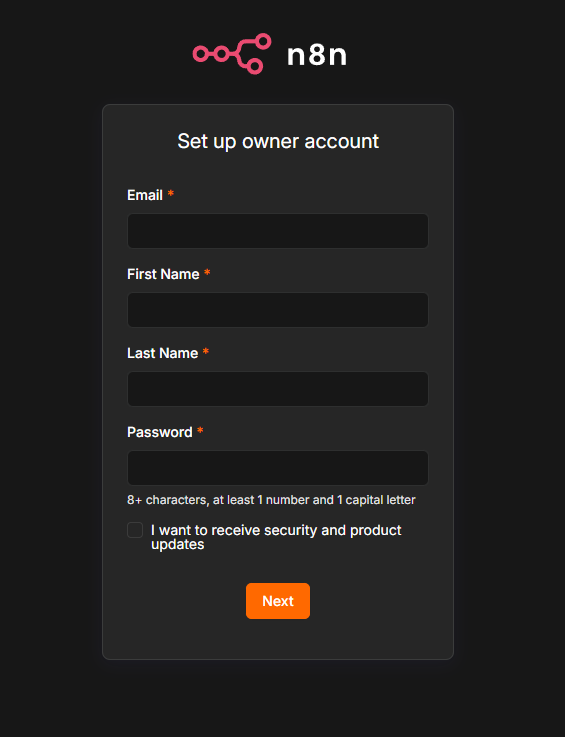
n8n then asks you to create its owner account. This is the account you sign in with from now on; the instance ID page does not appear again.
Turn on two-factor sign-in
Your dashboard is on the internet, so protect the account with a second step: in n8n, open Settings, then Personal, and turn on two-factor authentication. It is optional, but heavily recommended.
10. Try Ask Hermes
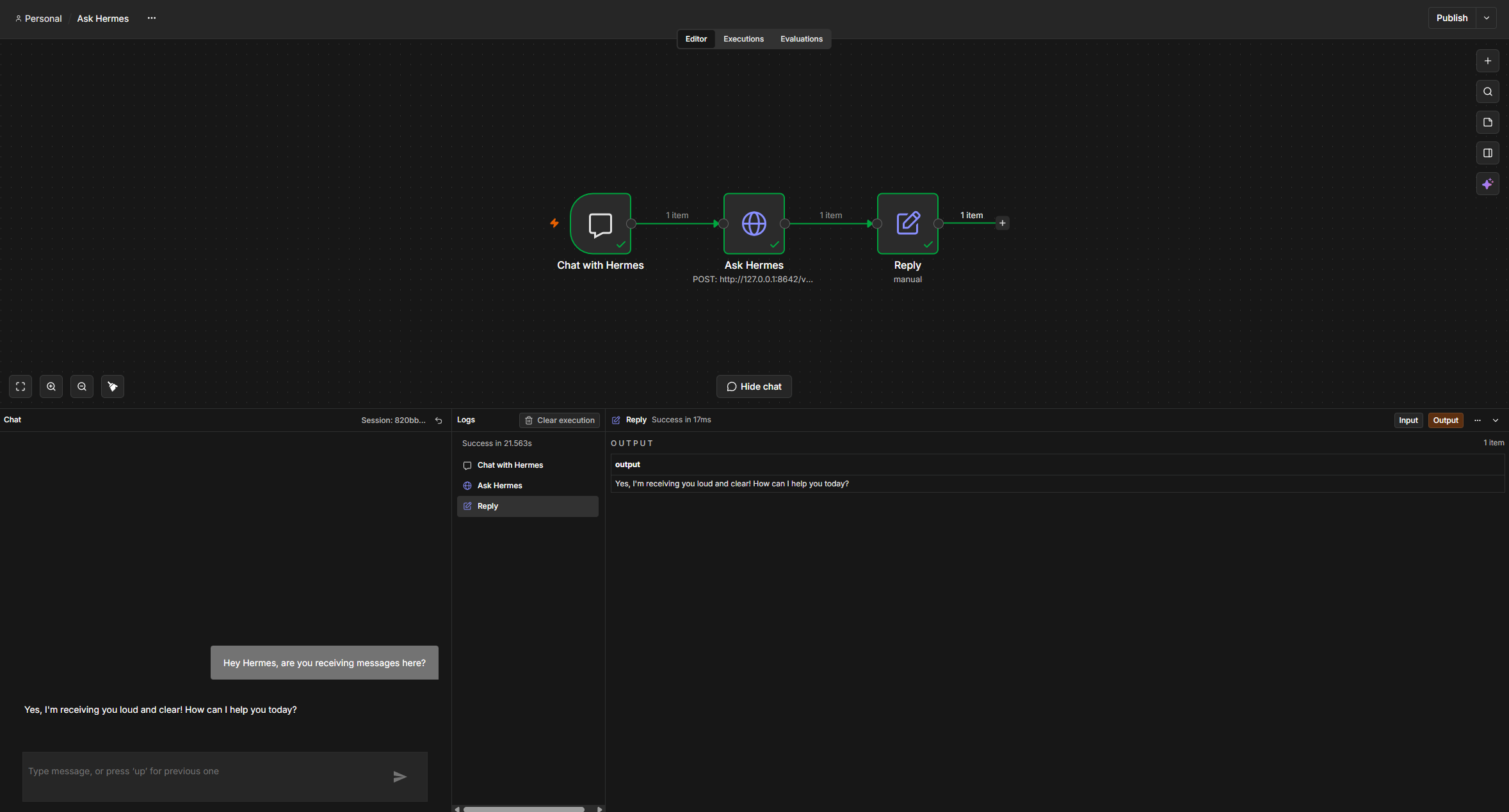
In the workflow list, open Ask Hermes and open its chat. Type a question: the reply comes from your own Hermes, using the model you chose.
You are set up. Next, let Hermes build workflows for you.
Connect the workflow builder How Hermes and n8n work together
Last updated October 26, 2026 · Suggest an improvement