Choose your own password
The instance ID is unique to your instance, but anyone who can see your EC2 console can read it. If other people will be able to reach the Studio, choose your own password.
From the Studio
After you sign in with the instance ID, the Studio offers to do this straight away:
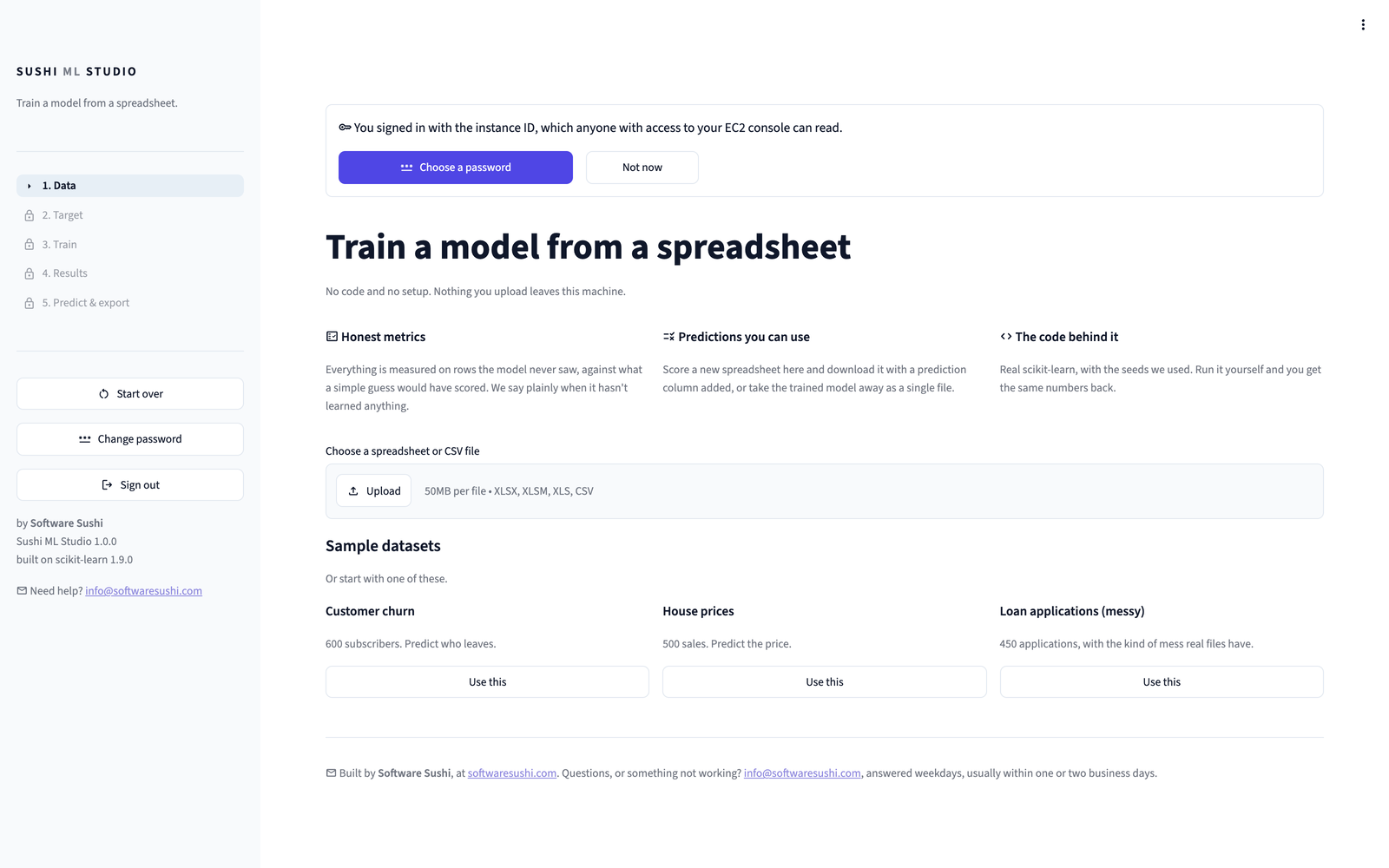
- Choose Choose a password on the prompt, or Change password in the sidebar at any time.
- Enter the current password, then the new one twice. It needs at least 12 characters, and cannot be the instance ID.
- Choose Save new password.
It takes effect at once, with no restart. Anyone else signed in, including your own other tabs, is asked to sign in again when they next use the Studio.
From a terminal
Useful for scripts. Connect to your instance, for example with EC2 Instance Connect, and run:
It asks for the new password twice. In a script, pipe it in with --stdin
instead.
Two commands are only available from a terminal:
| Command | Effect |
|---|---|
sudo sushi-ml-studio reset-password |
Go back to using the instance ID. Also the fix for a forgotten password. |
sudo sushi-ml-studio disable-password |
Turn sign-in off entirely. Only do this when the port cannot be reached from the internet. |
When you connect over SSH or EC2 Instance Connect, the login banner says which kind of password is in force.