Predict and export
The last step, Predict & export, is where the model goes to work.
Predict on a new file
Under Score a new file, upload a CSV or Excel file with the same columns the model learned from.
- The column you predicted does not need to be there.
- Extra columns, such as names or IDs, are kept in the output and ignored by the model.
- If a column is missing, the Studio names it.
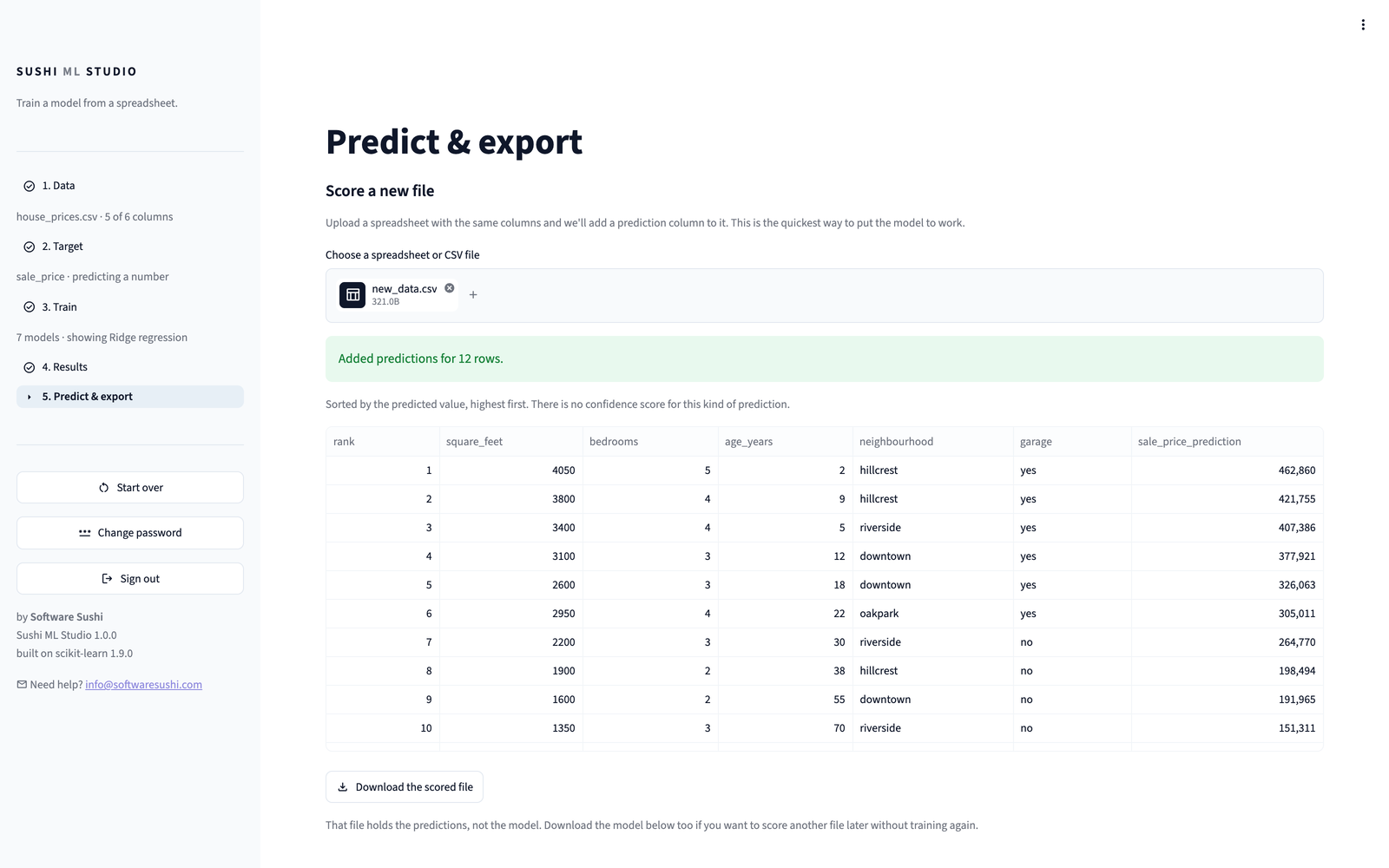
The Studio adds a rank column and a <column>_prediction column to every
row, and sorts the rows:
- Sorting into groups: it also adds
<column>_probability, the chance of the rarest answer, for example Yes for customers who cancel, and puts the most likely first. - Predicting a number: the highest predicted value comes first.
The page previews the first 20 rows, and Download the scored file saves all of them as a CSV.
Try it
Train on the House prices example, then score new_houses.csv: twelve houses that have not sold yet.
Take the model with you
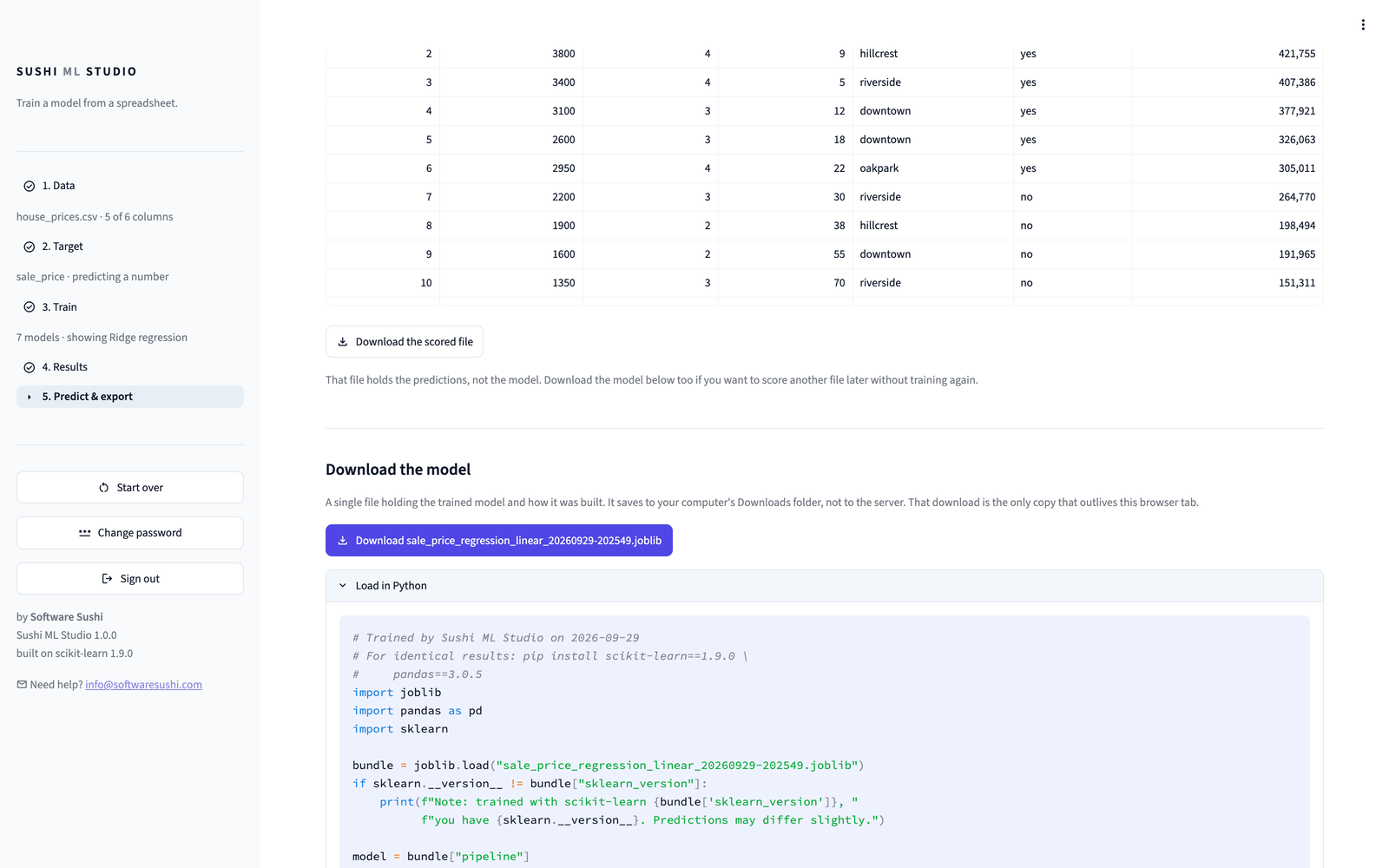
- Download (the button shows the file name, ending in
.joblib), under Download the model, saves the trained model as a single file on your computer. It holds the model, the columns it expects and how it was built. - Load in Python shows code that loads that file and makes predictions, written for your own columns.
- Training code is the complete Python script that builds the same model from your file, with the same random seeds, so running it on the same file reproduces the model's score.
The model needs only widely used open-source Python libraries: scikit-learn, pandas and joblib, plus openpyxl to read Excel files. The first lines of the code give the exact versions for identical results. The cookbook has recipes for using it.
Download every model
When you trained more than one model, Download every model saves all of
them at once, so you can keep the runners-up as well as the one you picked.
Download all gives you a single .zip file holding:
- one
.joblibfile for each model that finished training, the same file its own download would give you. A model's default, tuned and custom versions are separate files, and a tuned or custom one hastunedorcustomin its name; models.csv, listing the models in the order the Results page ranked them, with each one's score, verdict and file name, and which one was recommended;README.txt, with a few lines of Python that load a model.
Unzip it before loading a model.
Very large models download one at a time
Models trained on a large file can be hundreds of megabytes each, random forest and extra trees especially. When the models are too large to put in one file safely, the Studio says so and shows a download button for each model instead.
Before you close the tab
Download what you want to keep
The trained model lives only in your browser tab. Refreshing the page, closing the tab, Start over, Sign out or Use a different file clears it. If you have not downloaded it, on its own or in the zip of every model, your browser asks before a refresh or close, and the Studio asks before Start over or Sign out, but not before Use a different file. Nothing you upload is saved on the instance.