Connect the workflow builder
Let Hermes create, edit, test and publish n8n workflows when you ask. It takes about two minutes, once, after the Quick start.
You need: the n8n owner account you created, and a terminal on the instance.
Why this one step is yours
Hermes builds workflows through n8n's own MCP server, which accepts only a personal token issued to an n8n user. Only you can fetch it, so the image cannot connect this part for you. Everything else is connected already.
1. Switch on MCP access in n8n
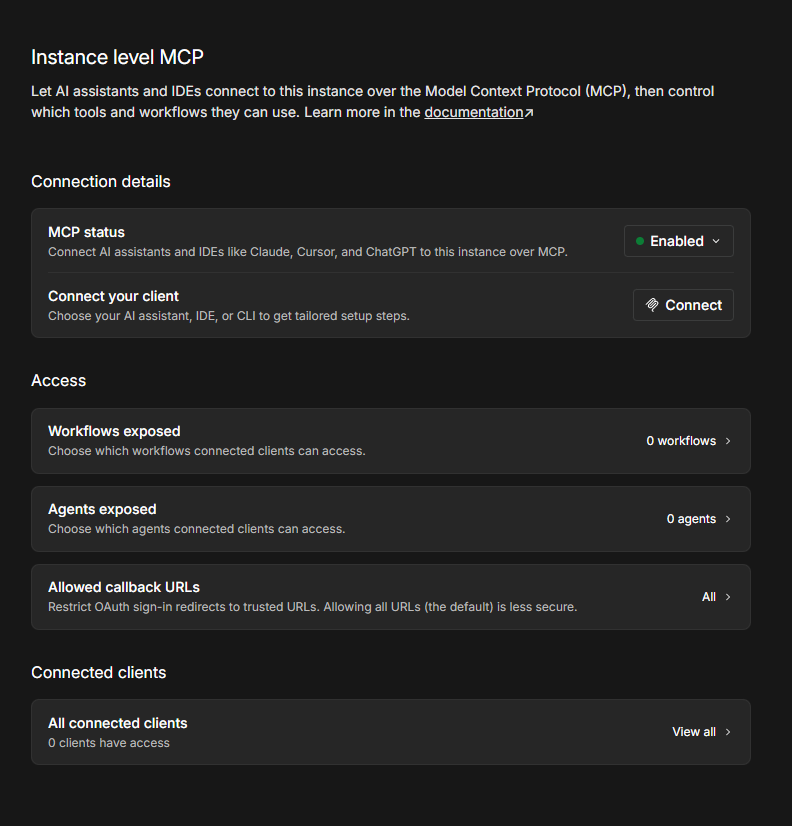
Open your n8n dashboard, sign in, and go to Settings, then Instance-level MCP. Switch on Enable MCP access.
This switch controls the workflow builder only. Ask Hermes and Hermes tools work whether it is on or off.
2. Copy your access token
On the same page:
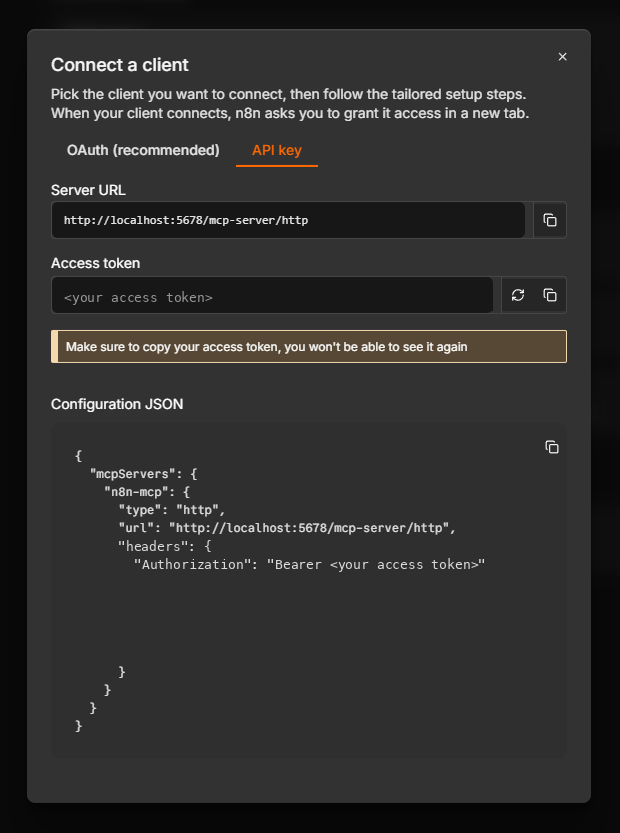
- Choose Connect.
- Choose the API key tab.
- Copy your Access Token.
n8n shows the full token only the first time. If it is hidden, choose Generate new token and copy the new one.
Treat it like a password
The token lets Hermes act as your n8n user. Do not paste it into chats, tickets or shared documents.
3. Connect Hermes
In a terminal on the instance:
Paste the token when asked. The command checks the token with n8n, lists the changes it will make, and asks before making them:
This will:
  1. Add an n8n_workflow_builder entry to Hermes's config.yaml with this token
  2. Hide the permanent-delete tools from Hermes: delete_workflow, delete_agent, delete_data_table_column
  3. Save this token with the instance's other secrets (readable by root only)
  4. Restart the Hermes gateway
Continue? [y/N]
Answer y. It finishes by checking that Hermes connected and cannot see the delete tools.
4. Ask Hermes to build something
In Hermes, through your terminal or a messaging app you connected, try:
Create an n8n workflow called "Daily hello" that runs once a day at 8:00 AM and
outputs {"hello": "world"}.
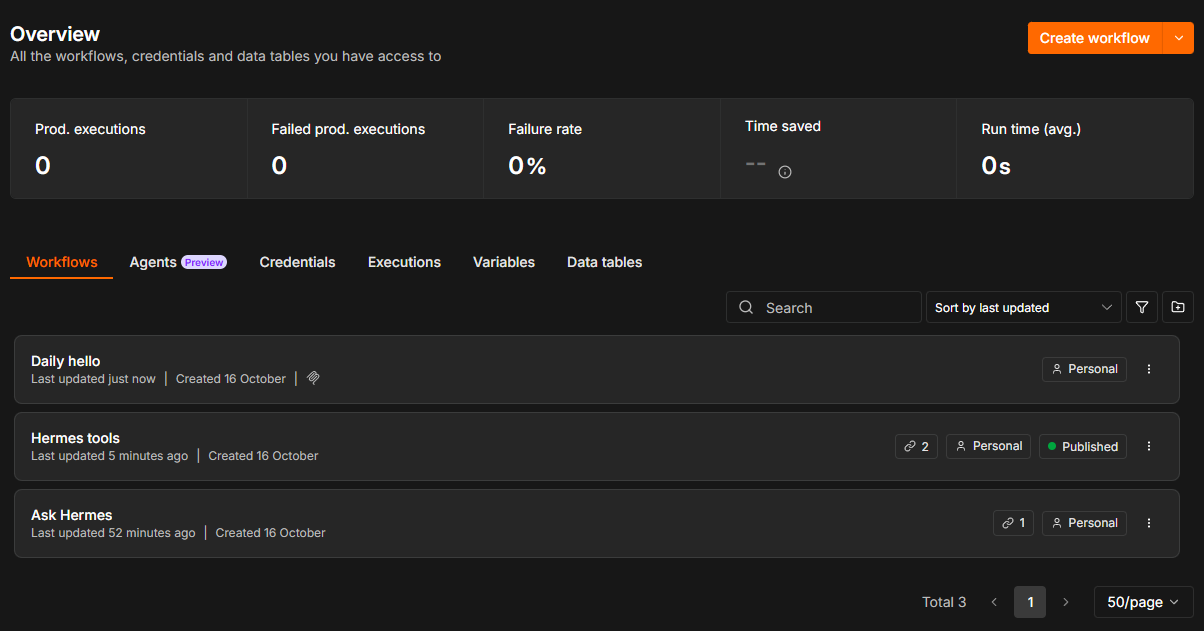
The new workflow appears in your n8n workflow list.
The MCP access icon
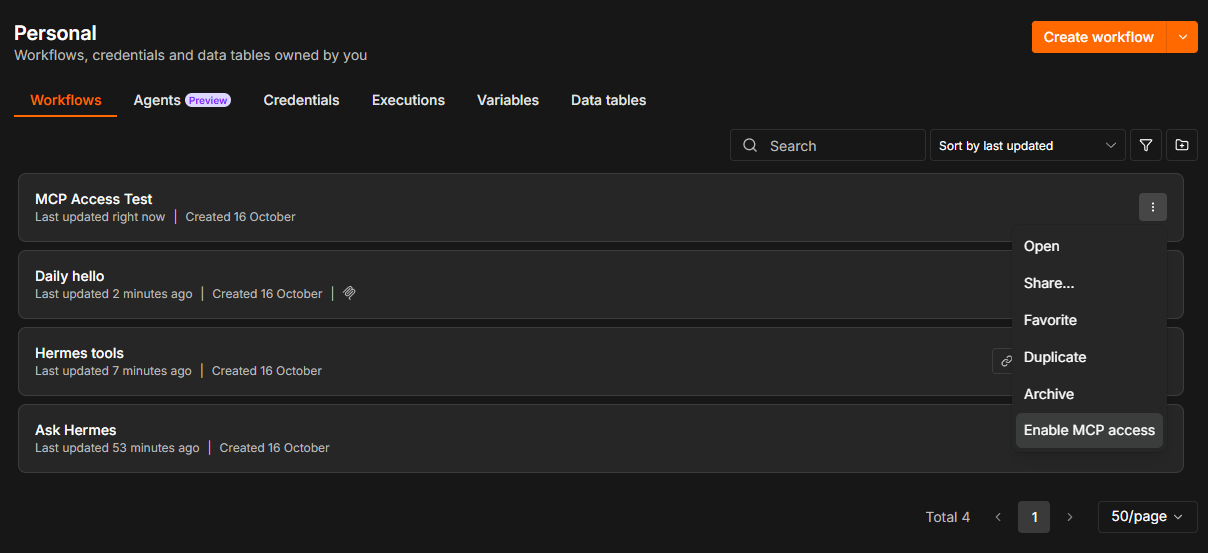
You may notice that in the above screenshot, the Daily Hello workflow has a small icon next to its creation date. This is n8n's indicator for whether or not a given workflow has had MCP access enabled or not.
5. Allow your own workflows (optional)
Hermes can edit the workflows it creates straight away. A workflow you built yourself stays closed to it until you allow it: in the workflow list, open that workflow's ⋯ menu and choose Enable MCP access. Then ask Hermes to change it.
What Hermes can and cannot do
| Hermes can | Hermes cannot |
|---|---|
| Create workflows, and edit the ones it created | Edit a workflow you made yourself, until you allow it |
| Test, publish and unpublish workflows | Permanently delete a workflow, an n8n Agent or a data table column |
| Archive workflows, which hides them from your list | Read the secret values in your n8n credentials |
| Use your saved n8n credentials, by name, in workflows it builds | Read the contents of a workflow you have not allowed |
| Search your workflows by name |
For more on asking for workflows, see Let Hermes build workflows.
If you regenerate the token in n8n
Hermes keeps using the old one until you run
sudo hermes-n8n connect-builder again with the new token.
sudo hermes-n8n status tells you when that is needed.
Last updated October 25, 2026 · Suggest an improvement